
Upgrade Guide
1. Check your version
To check your current version of AKTS Thermal Safety, use the menu ?->About
The latest version of AKTS Thermal Safety Software is 5.51.
Released on January 16th, 2023.
The latest version of AKTS Thermal Safety Software is 5.51.
Released on January 16th, 2023.
| Maintenance Expiration | Accessible Version |
|---|---|
| After August 18th, 2022 | 5.51 |
| Between June 25th, 2021 and August 18th, 2022 | 5.42 |
| Between June 16th, 2020 and June 25th, 2021 | 5.34 |
| Between December 19th, 2019 and June 16th, 2020 | 5.2 |
| Between May 17th, 2019 and December 19th, 2019 | 5.11 |
| Between June 28th, 2018 and May 17th, 2019 | 5.024 |
| Between February 10th, 2017 and June 28th, 2018 | 4.46 |
| Between August 30th, 2016 and February 10th, 2017 | 4.3 |
| Between June 29th, 2016 and August 30th, 2016 | 4.23 |
| Between September 15th, 2015 and June 29th, 2016 | 4.15 |
| Between June 29th, 2016 and August 30th, 2016 | 4.02 |
| Between May 12th, 2014 and September 15th, 2015 | 3.91 |
| Between December 6th, 2013 and May 12th, 2014 | 3.8 |
| Between September 18th, 2013 and December 6th, 2013 | 3.64 |
| Between January 7th, 2013 and September 18th, 2013 | 3.51 |
| Between October 3rd, 2012 and January 7th, 2013 | 3.41 |
| Between June 4th, 2012 and October 3rd, 2012 | 3.31 |
| Between September 6th, 2011 and June 4th, 2012 | 3.25 |
| Before December 31st, 2010 | 3.19 |
2. Backup your Data
IMPORTANT : Before upgrading, it is recommended to backup your data.
- Create a new folder, i.e. ” Thermoanalytical Data Management Backup”
- Copy the following files :
- AKTS-Thermoanalytical-Data-Management.exe
- kin.adb
- the folder “data”
- Your data are now archived. You can proceed with the upgrade process
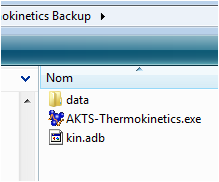
2/ Backup your files before upgrading
3. Upgrade AKTS-Thermoanalytical Data Management
If the computer on wich the software is installed is connected to Internet (online)
, go to the menu “About” menu and select “Automatic Upgrade”. The software will be upgrade automatically.
If the computer on wich is installed is NOT connected to Internet (offline)
- To obtain the latest version, please contact AKTS at
- Once you have received the latest version, extract the files in the folder where the software is installed. This will replace the old version with the new one.
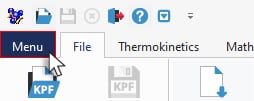
Access to “Menu” -> “About”
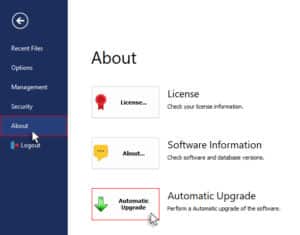
Automatic Upgrade
4. New functionalities
The list of the new functionalities and bug corrections are described in AKTS-Thermoanalytical Data Management help files.
Having trouble reading the CHM files? please visit this link